Table of Contents
ToggleA well-designed home office desk setup can be the difference between productive workdays and constant back pain, lost documents, and afternoon eye strain. Whether someone’s carving out space in a spare bedroom, converting a closet into a micro-office, or finally upgrading that wobbly card table, the right setup combines ergonomics, lighting, and organization into a workspace that actually works. This guide walks through practical desk setup ideas that address real-world challenges, from choosing the right desk dimensions to managing cable chaos, without the fluff.
Key Takeaways
- A well-designed home office desk setup combines proper ergonomics, task lighting, and cable management to prevent back pain, eye strain, and productivity loss.
- Standard desk height is 29–30 inches, but adjustable desks and desktop depth of at least 30 inches for dual monitors ensure comfort and accommodate different work styles.
- Monitor placement at eye level, keyboard at elbow height with neutral wrists, and proper chair support with lumbar adjustment are critical ergonomic foundations that reduce long-term strain injuries.
- Layered lighting combining natural light from the side, LED task lamps (400–500 lumens), and ambient overhead lighting reduces eye strain and maintains focus throughout the workday.
- Vertical storage solutions like wall-mounted shelves and pegboards, combined with organized drawers and cable trays, keep essential items accessible while maintaining a clutter-free desk surface.
- Thoughtful personalization with 2–3 plants or decor items and smart power strips creates an inspiring workspace that supports both productivity and eco-conscious energy management.
Choosing the Right Desk for Your Space and Work Style
Desk selection starts with measuring the available space and understanding how the workspace will be used. A dedicated writing desk needs less surface area than a setup with dual monitors, a printer, and reference materials spread across the surface.
Standard desk height is 29–30 inches, but adjustable-height desks (manual crank or electric) range from 24–50 inches, accommodating both sitting and standing positions. For tight spaces, wall-mounted fold-down desks or corner L-shaped designs maximize square footage without blocking walkways.
Desktop depth matters more than most people realize. A 24-inch-deep surface works for a laptop and notebook, but dual-monitor setups need at least 30 inches to maintain proper viewing distance (20–26 inches from eyes to screen). Width depends on equipment: 48 inches handles most single-user setups, while 60–72 inches accommodates sprawling projects or multiple work zones.
Material choice affects durability and maintenance. Solid wood (oak, maple, walnut) handles daily wear but costs more and can warp in humid environments. Plywood or MDF with laminate offers budget-friendly stability and easy cleaning. For DIYers building custom desks, butcher block countertops from home centers provide ready-made surfaces in standard depths, just add legs or brackets. Builders looking for design inspiration can find creative desk modifications that adapt affordable furniture into custom configurations.
Load-bearing capacity shouldn’t be overlooked. If the desk will support heavy equipment (laser printer, large monitor arm, studio speakers), verify that legs and frame can handle 100+ pounds distributed across the surface. Hollow-core doors on sawhorses look clean but sag under weight.
Essential Ergonomic Setup: Chair, Monitor, and Keyboard Placement
Ergonomics prevents the cumulative damage of eight-hour workdays. Poor positioning leads to neck strain, carpal tunnel symptoms, and lower back pain, problems that don’t show up for months but stick around for years.
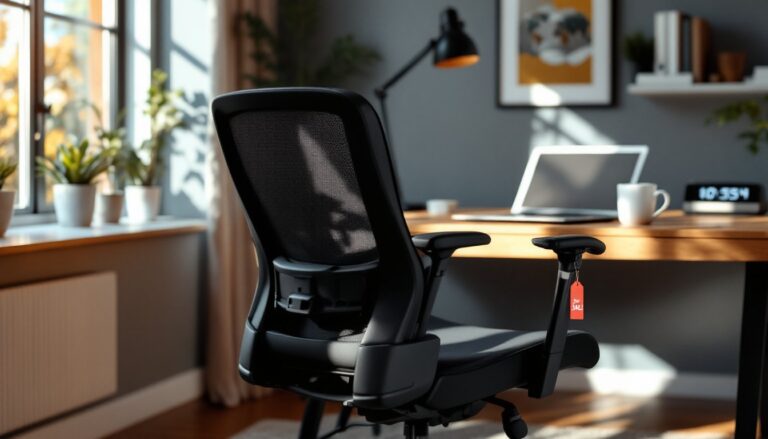
Chair height and support: Feet should rest flat on the floor (or footrest) with knees at 90-degree angles. The seat pan should be 16–18 inches deep, allowing 2–3 inches of clearance between the seat edge and the back of the knees. Lumbar support should fit the natural curve of the lower spine, adjustable models let users dial in the right position. If budget allows, invest in a task chair with adjustable armrests, seat height, and tilt tension.
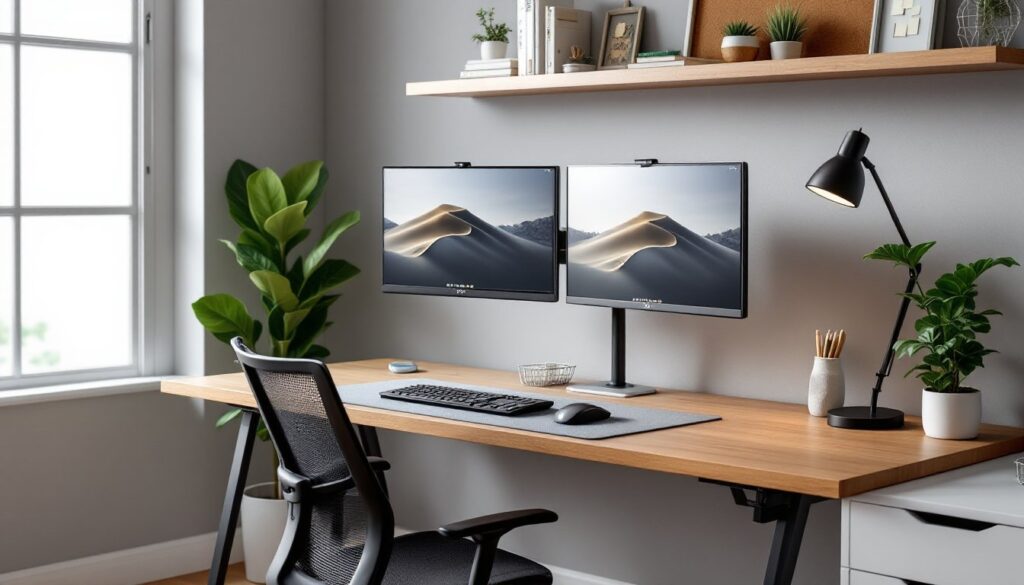
Monitor placement: The top of the screen should sit at or slightly below eye level, reducing neck flexion. Single monitors should center directly in front of the user: dual monitors work best angled in a slight arc. Monitor arms (VESA-compatible mounts) free up desk space and allow precise height/distance adjustment. For laptop users, a separate keyboard and mouse paired with a laptop stand brings the screen to proper height without forcing wrists into awkward angles.
Keyboard and mouse position: Keyboards should sit at elbow height with forearms parallel to the floor. Wrists should remain neutral, not bent up, down, or sideways, during typing. Ergonomic keyboards split into angled sections can help, but they require an adjustment period. Mouse placement should allow the entire forearm to move, not just the wrist.
Anyone setting up a productive workspace environment should test positioning for a full day before permanently mounting equipment. Small adjustments, an inch of monitor height, a slight keyboard tilt, make noticeable differences in comfort over time.
Lighting Solutions That Reduce Eye Strain and Boost Productivity
Poor lighting is the silent productivity killer. Too dim and users squint at screens: too bright or poorly positioned and glare creates headaches and eye fatigue.
Layered lighting strategy: Combine three types, ambient (overhead or natural light), task (desk lamp), and accent (optional background lighting). Natural light from windows should come from the side, not behind the monitor (causes screen glare) or directly facing the user (causes squinting).
Task lighting specifics: LED desk lamps with adjustable arms and color temperature controls (2700K warm to 5000K cool daylight) let users match lighting to tasks and time of day. Warmer tones reduce eye strain during evening hours, while cooler daylight temperatures improve focus during morning work. Look for lamps rated at 400–500 lumens for general desk tasks. Position task lights to avoid reflections on screens, typically offset to the non-dominant hand side.
Monitor brightness balance: Screen brightness should match ambient room lighting. A monitor glowing like a beacon in a dark room strains eyes as much as a dim screen in bright sunlight. Most displays include auto-brightness sensors, but manual adjustment often works better. The 20-20-20 rule helps regardless of lighting: every 20 minutes, look at something 20 feet away for 20 seconds.
For basement or windowless offices, full-spectrum LED bulbs (5000–6500K) in overhead fixtures simulate daylight and help maintain circadian rhythm. Under-cabinet or floating shelf lighting adds ambient fill without taking desk space. Dimmer switches allow adjustment throughout the day.
Avoid placing monitors directly in front of windows unless using blackout shades or curtains. Backlit monitors fighting bright windows force eyes to constantly adjust between extreme light levels.
Smart Storage and Organization Systems for a Clutter-Free Desk
Desk clutter isn’t just unsightly, it wastes time and mental energy. Effective storage keeps essential items within arm’s reach while clearing work surfaces.
Vertical storage solutions: Wall-mounted shelves, pegboards, and magnetic strips move supplies off the desk. Pegboards accept hooks, bins, and small shelves in customizable configurations. Floating shelves (8–12 inches deep) above the desk hold reference books, binders, or decorative items without requiring floor space. When installing shelves, find studs or use appropriate hollow-wall anchors rated for the expected load.
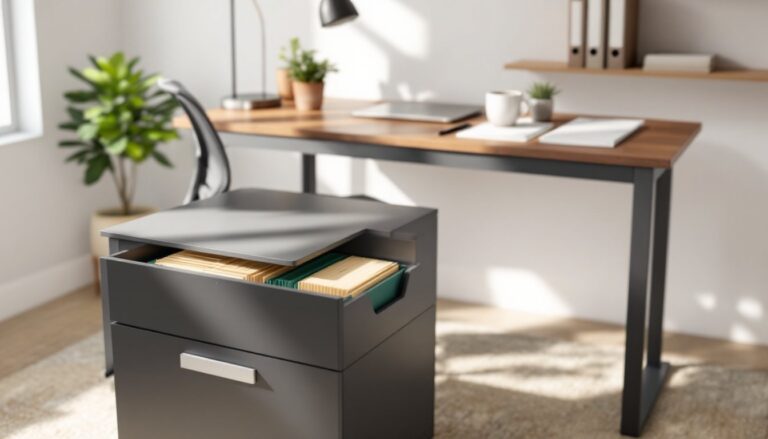
Drawer organization: Desktop organizers and drawer dividers prevent the “junk drawer” effect. Bamboo or acrylic divider sets separate pens, charging cables, sticky notes, and small tools. For deeper drawers, file folders in hanging file frames keep documents accessible without stacking. Label everything, three months from now, no one remembers which unmarked box holds printer cartridges.
Desktop minimalism: Keep only daily-use items on the work surface. Staplers, tape dispensers, and notebooks that get used weekly belong in drawers. A small tray or stand for current project materials prevents paper sprawl. Consider a modern office layout that emphasizes clean surfaces and intentional storage placement.
Cable management preview: Storage planning should account for power strips, charging cables, and equipment cords. Desktop grommets (2–3 inch diameter holes with plastic or metal inserts) route cables through the work surface cleanly. Plan grommet placement before drilling, measure from equipment locations to outlet positions.
Builders comfortable with basic carpentry can follow furniture building tutorials to construct custom storage that fits odd spaces or specific requirements. Even simple projects like under-desk shelf brackets or desktop organizer trays improve functionality.
Personalizing Your Workspace: Decor, Plants, and Inspiration Boards
A sterile office feels like a waiting room. Thoughtful personalization creates a space worth sitting in for eight hours, without tipping into distraction.
Wall decor and artwork: Framed prints, posters, or personal photos add color and break up blank walls. Gallery walls work in larger offices: single statement pieces suit smaller spaces. Avoid busy patterns directly in the line of sight, they compete for attention during video calls. Motivational quote prints are polarizing: skip them if they feel like corporate platitudes.
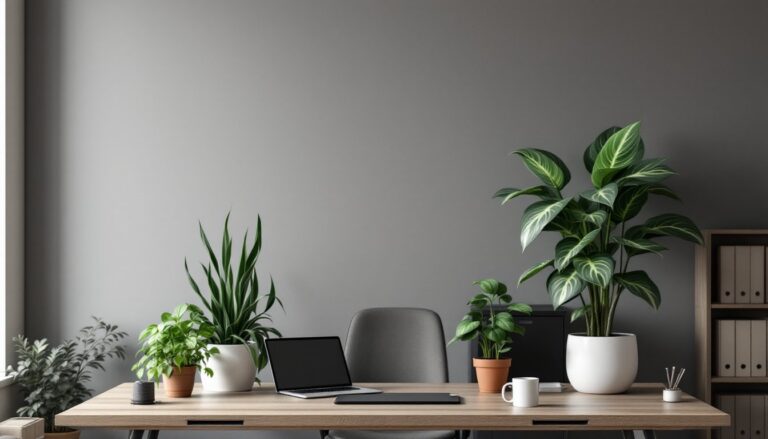
Plants for air quality and aesthetics: Low-maintenance varieties thrive in office environments. Pothos, snake plants, and ZZ plants tolerate inconsistent watering and low light. Desktop succulents add greenery without demanding much care. Larger floor plants (fiddle leaf fig, rubber plant) work in corners or beside desks if natural light allows. Use cache pots or saucers to protect desk surfaces from moisture.
Inspiration and bulletin boards: Cork boards, magnetic boards, or pegboard panels let users pin current project notes, inspiration images, or quick-reference charts. Frame cork board material in standard picture frame sizes for a cleaner look. Digital alternatives include tablet mounts or small displays showing rotating images, though physical boards don’t require power or software updates.
Functional decor: Pencil holders, desk mats, and coasters can reflect personal style while serving practical purposes. Wooden or leather desk accessories age well: plastic tends to look cheap after a few months. Creating an elevated aesthetic doesn’t require luxury pricing, consistency in materials and color palette matters more than cost.
Limit desktop decor to 2–3 items to maintain functionality. A small plant, one photo frame, and a quality pen holder beats a crowded collection of novelty items.
Cable Management and Tech Integration Tips
Cable chaos is the final boss of desk setup. Poor cable management creates visual clutter, makes cleaning difficult, and turns equipment swaps into tangled nightmares.
Under-desk cable routing: Cable trays (wire basket style or J-channel) mount under the desk and hold power strips, excess cable length, and transformers off the floor. They attach with screws or heavy-duty adhesive. Route cables along desk legs or frame rails using cable clips or Velcro straps, avoid zip ties, which damage cables when removed.
Power management: Mount the power strip inside the cable tray or on the underside of the desk, not on the floor. This keeps outlets accessible and prevents dust buildup. Surge-protected strips with 6–10 outlets handle typical home office loads. For adjustable-height desks, leave slack in all cables to accommodate movement, taut cables pull equipment off the desk or damage connections.
Cable sleeves and wraps: Neoprene cable sleeves bundle multiple cables into one manageable tube. They work well for the drop from desktop to under-desk cable tray. For exposed cables running along walls, paintable cable raceways provide cleaner aesthetics than tape or clips alone.
Desktop cable management: Adhesive cable clips guide keyboard, mouse, and charging cables along the desk edge. Small cable boxes with lids hide power strip clutter and excess cable on the desktop. For frequently plugged/unplugged devices (phone chargers, camera cables), leave a small coil of slack near the connection point.
Labeling cables: Use label makers or masking tape to mark both ends of cables. Three months later, when troubleshooting or rearranging, labeled cables save frustration. Color-coded cables (when available) also help, white for Apple products, black for PC peripherals, etc.
Anyone pursuing an eco-conscious workspace should consider smart power strips that cut phantom power draw when equipment is off. These reduce energy waste without requiring manual unplugging. For additional project ideas and tool recommendations, resources like Fix This Build That offer guidance on workshop organization and custom storage builds that translate well to home office spaces.
Conclusion
Building an effective home office desk setup isn’t about buying the most expensive gear or copying showroom displays. It’s about matching furniture, ergonomics, lighting, and storage to specific work habits and space constraints. Measure twice, test positions before permanent mounting, and don’t skip cable management, future self will appreciate the effort. A well-planned workspace reduces fatigue, improves focus, and makes those long work-from-home days measurably better.